The app uses Simplified Chinese by default. To use Traditional Chinese, open 设置 → 语言 and select 繁體中文, as shown under Change language below. The screenshots that follow use Traditional Chinese.
These are full screenshots of the app. Screen size or font settings may make your phone look slightly different; look for the same button names.
Step 1: Install and get started
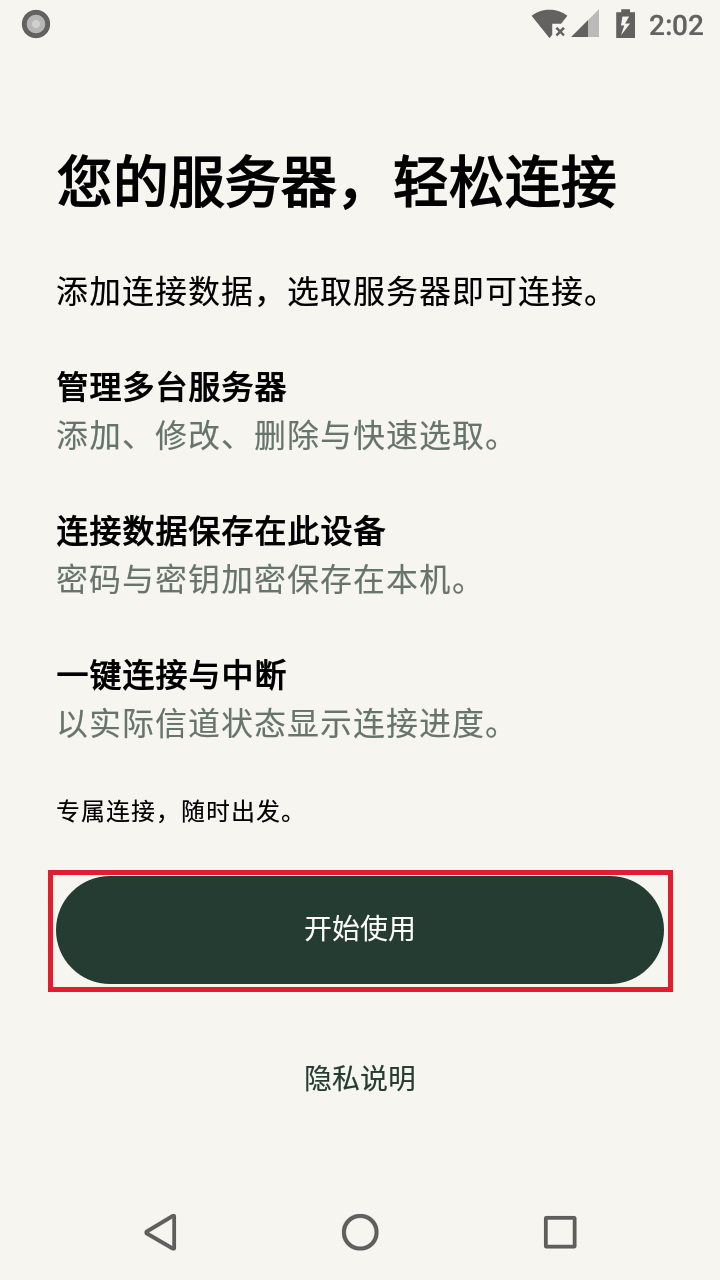
Obtain the APK from an official channel and install it, then open BaospotVPN 高速連線. On first use, swipe up on the welcome page and tap 开始使用 (Get started).
Step 2: Add a server
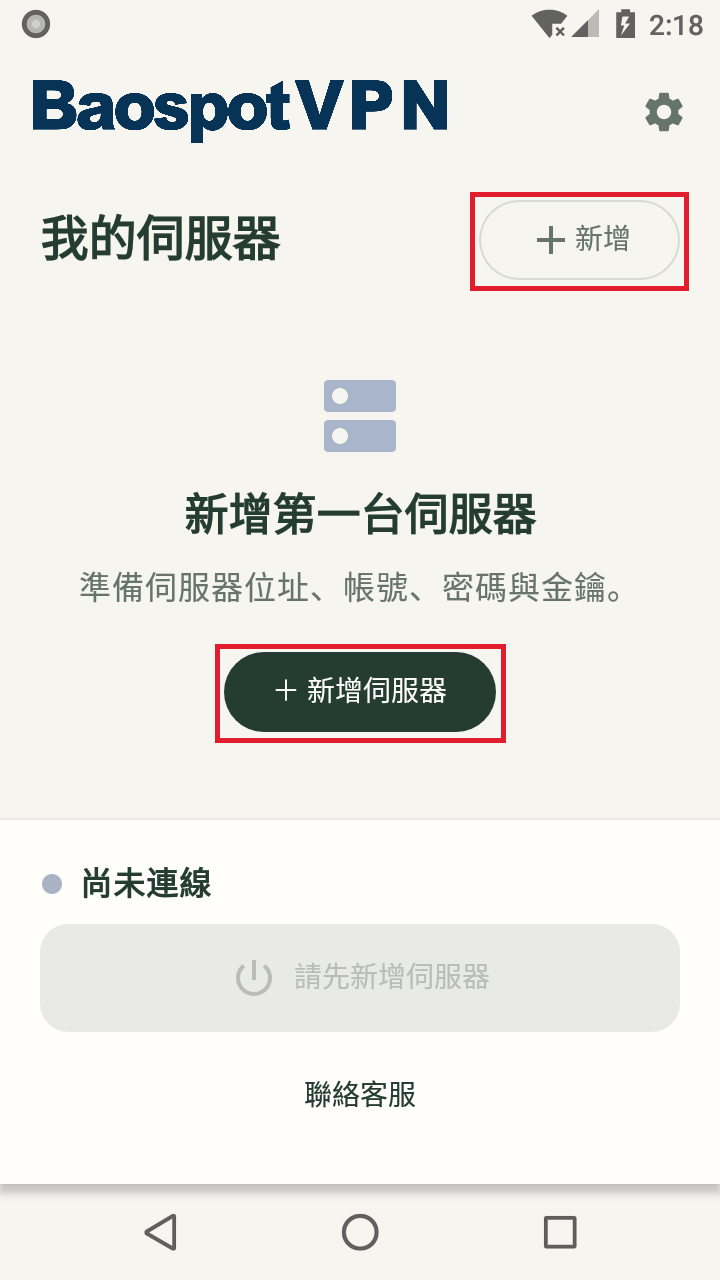
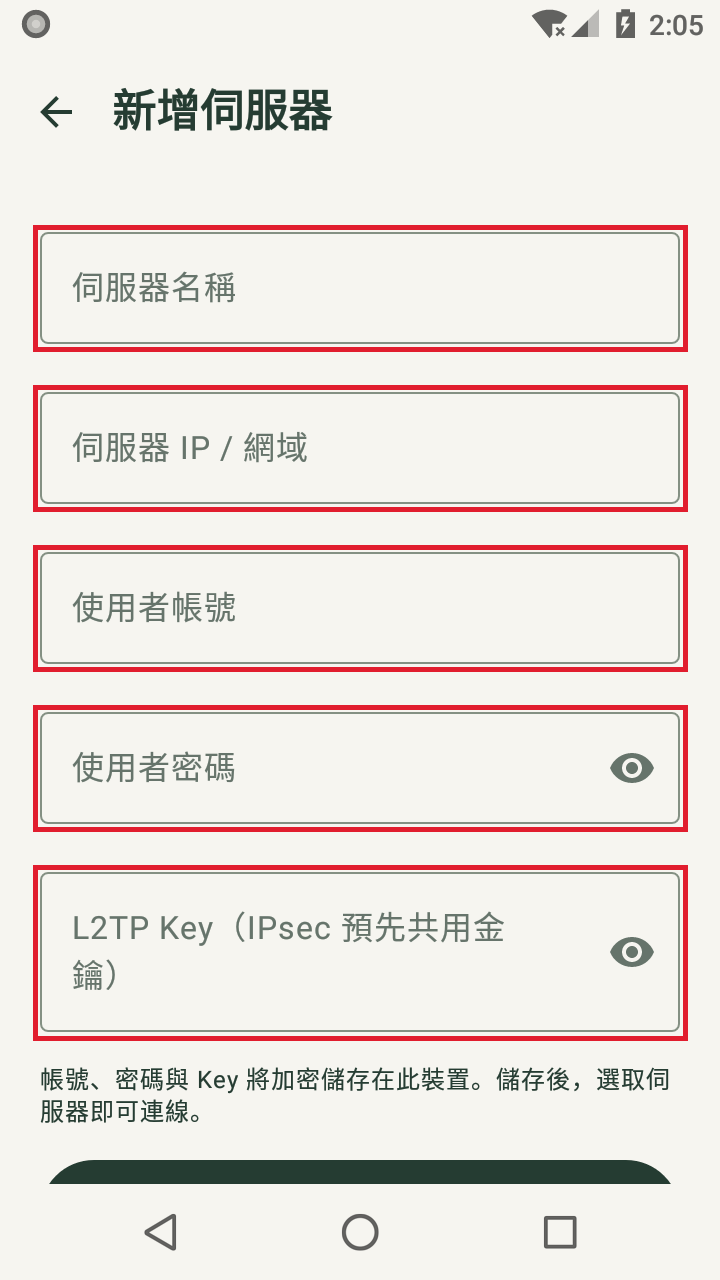
On the home screen, tap + 新增 (Add) or + 新增伺服器 (Add server) to enter your connection details.
Step 3: Enter your connection details
Fill in the five fields using the details you received. No additional advanced settings are needed. Tap 儲存伺服器 (Save server) when finished. If the button is not visible, dismiss the keyboard and swipe up on the form.
Step 4: Save the server
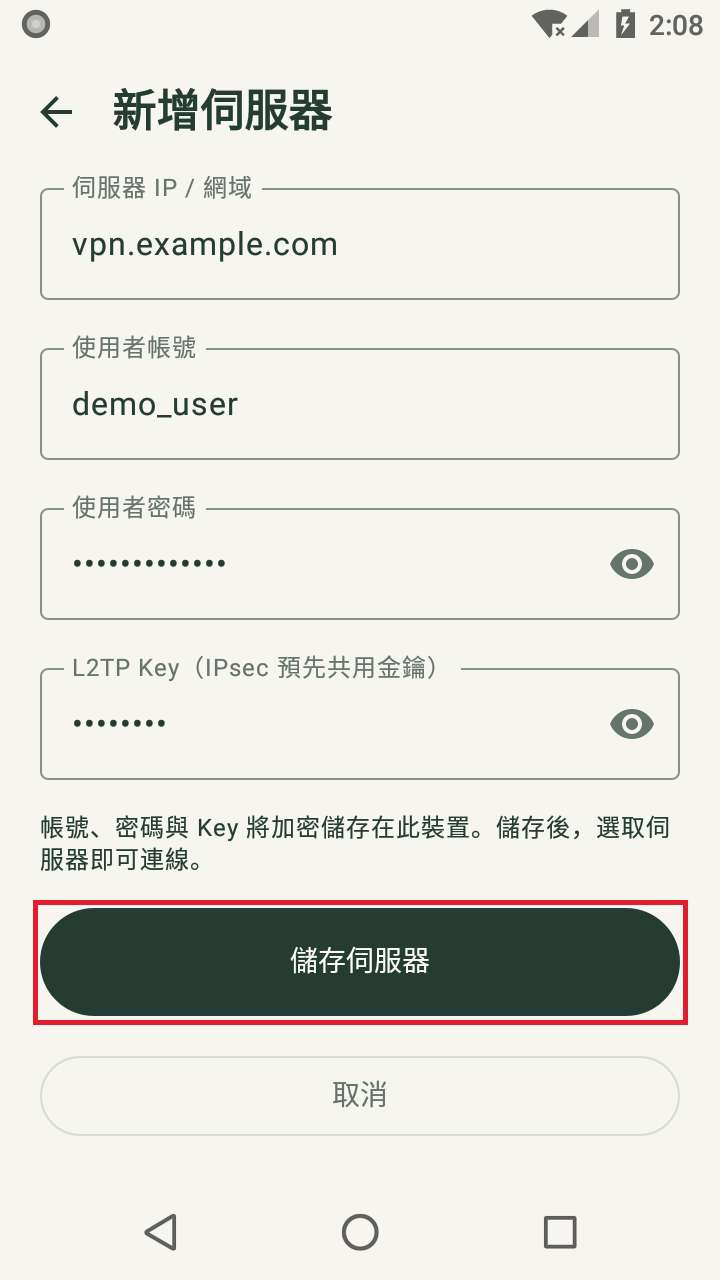
After entering your details, dismiss the keyboard, scroll down to 儲存伺服器 (Save server) and tap it.
VPN01, vpn.example.com and demo_user are examples; replace them with your own connection details. Passwords and Keys appear as dots and are stored encrypted on this device after saving. This screenshot is scrolled down to the save button; the name field is above.
Step 5: Select a server and connect
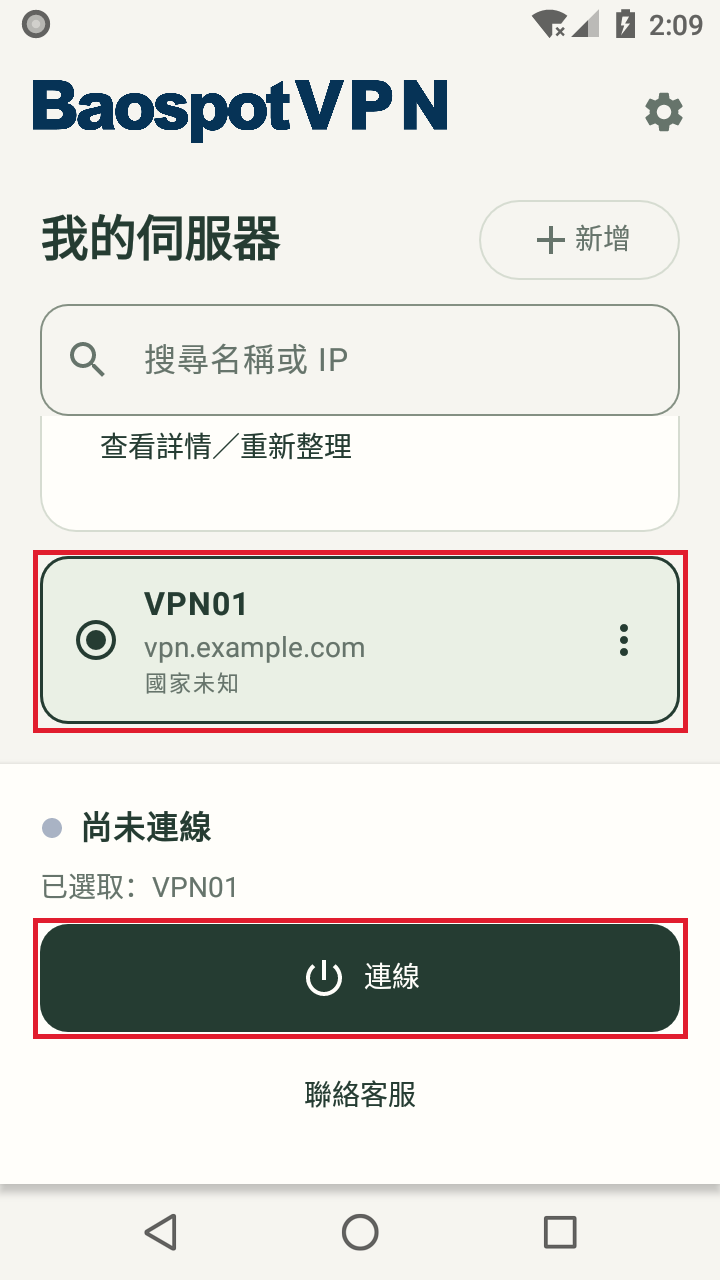
After saving, return to the home screen and select the server you want to use. Check the name beside 已選取 (Selected), then tap 連線 (Connect). Dismiss the keyboard if it covers the button.
The country and flag on each server card help identify the server. The example domain shown here displays 國家未知 (Country unknown). Enter the server address you received when configuring your connection.
已選取 (Selected) means you have selected a server. If you see 連線中 (Connecting), wait briefly. Once the home screen shows 已連線 (Connected), check the exit IP before use.
Country information is estimated from IP data, is for reference only and may differ from the actual data center location. It is not your phone's GPS location.
Step 6: Read the VPN and data notice
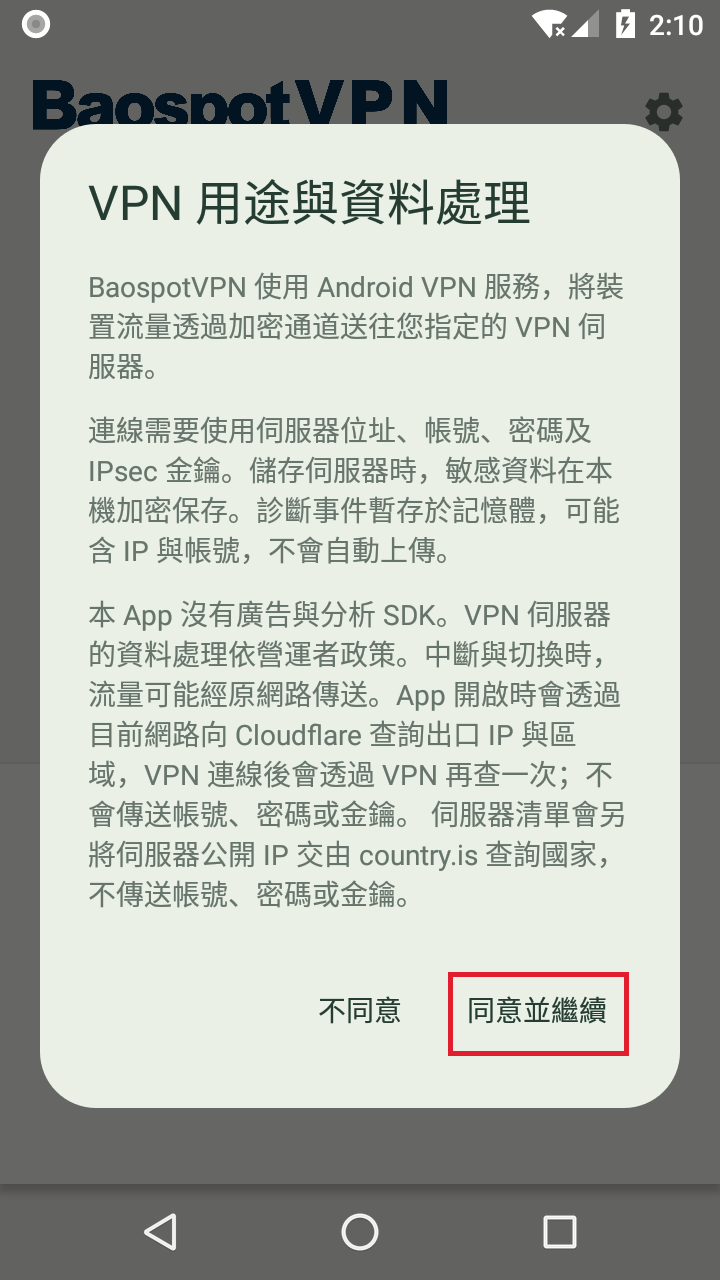
The first time VPN 用途與資料處理 (VPN purpose and data handling) appears, read it and tap 同意並繼續 (Agree and continue) if you agree.
Step 7: Allow the Android VPN connection
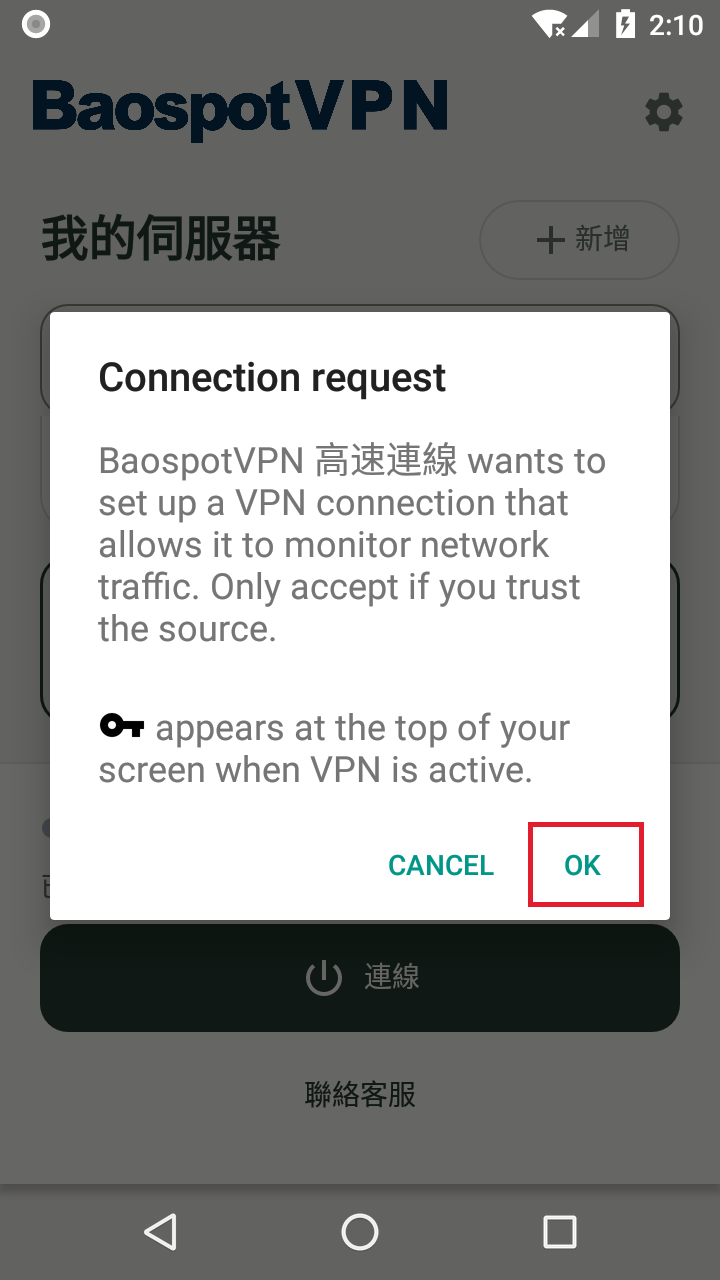
Android will ask you to confirm the VPN connection request. Tap OK. Depending on your phone's language, the button may say 確定 or 允許; follow the wording on your phone.
Step 8: Check the connection and exit IP
Once the home screen shows 已連線 (Connected), open 設定 → 目前 IP 與區域 (Settings → Current IP and region) to check the exit IP, which is the IP visible externally. Also try opening a regular web page.
Check three things: the home screen says Connected, the exit IP matches your service provider's details, and web pages open normally. Before you connect to the VPN, the IP page shows the exit information of your original network.
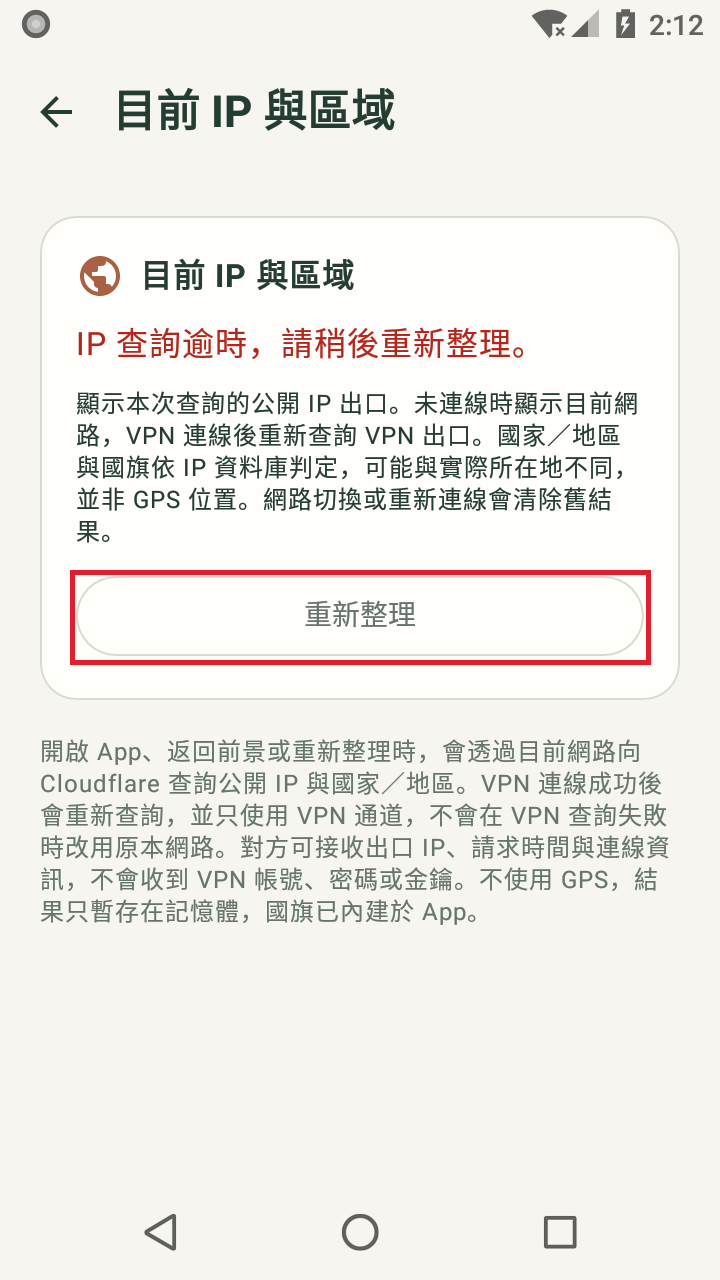
If you see IP 查詢逾時 (IP lookup timed out), first check that Wi-Fi or mobile data works, then tap 重新整理 (Refresh). You do not need to re-enter your credentials immediately. Confirm the VPN using the home screen status and exit IP; the flag is only an identification aid.
The screenshots use example details and demonstrate the VPN permission prompt without establishing an actual VPN connection. This screenshot shows where to refresh after a timeout. Check the actual status on your own phone.
Everyday use: Open settings
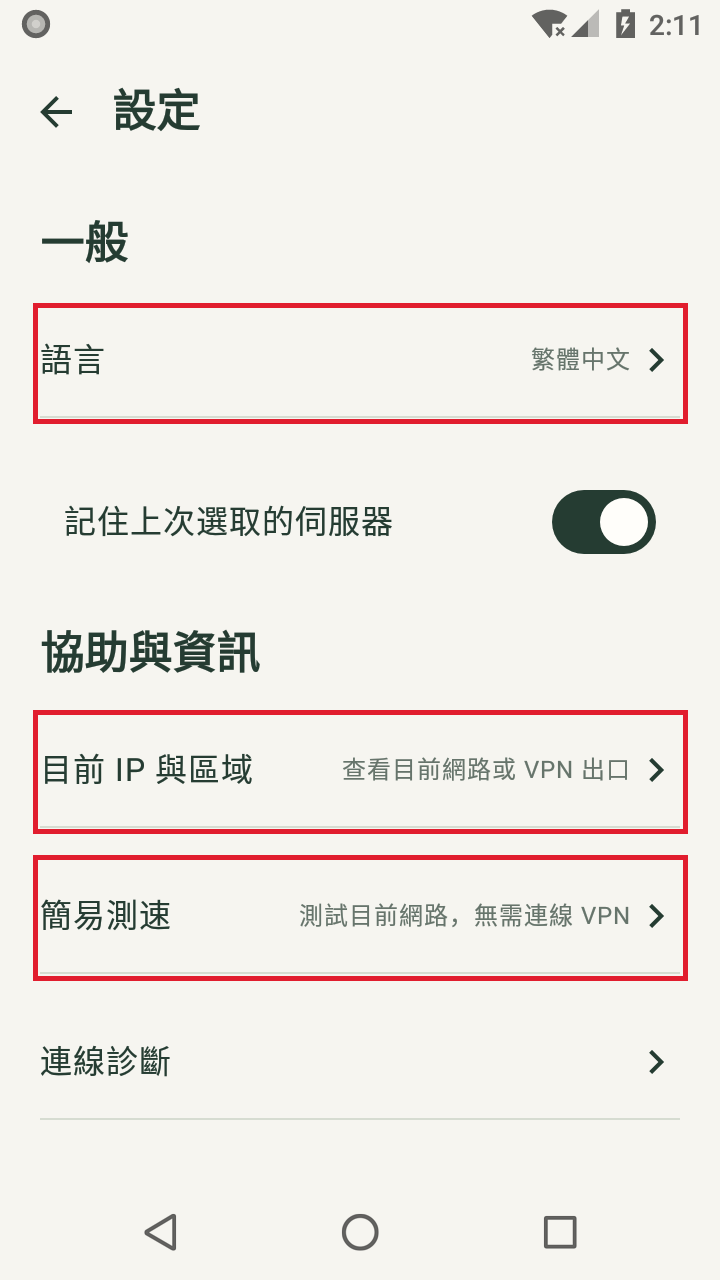
To change language, tap the gear at the top right of the home screen, then open 設定 → 語言 (Settings → Language) and choose your language. The change applies immediately and is remembered next time you open the app.
When switching or disconnecting the VPN, traffic may return to your original network. After switching, check the home screen status and exit IP to confirm you are connected to the new server.
Everyday use: Change language
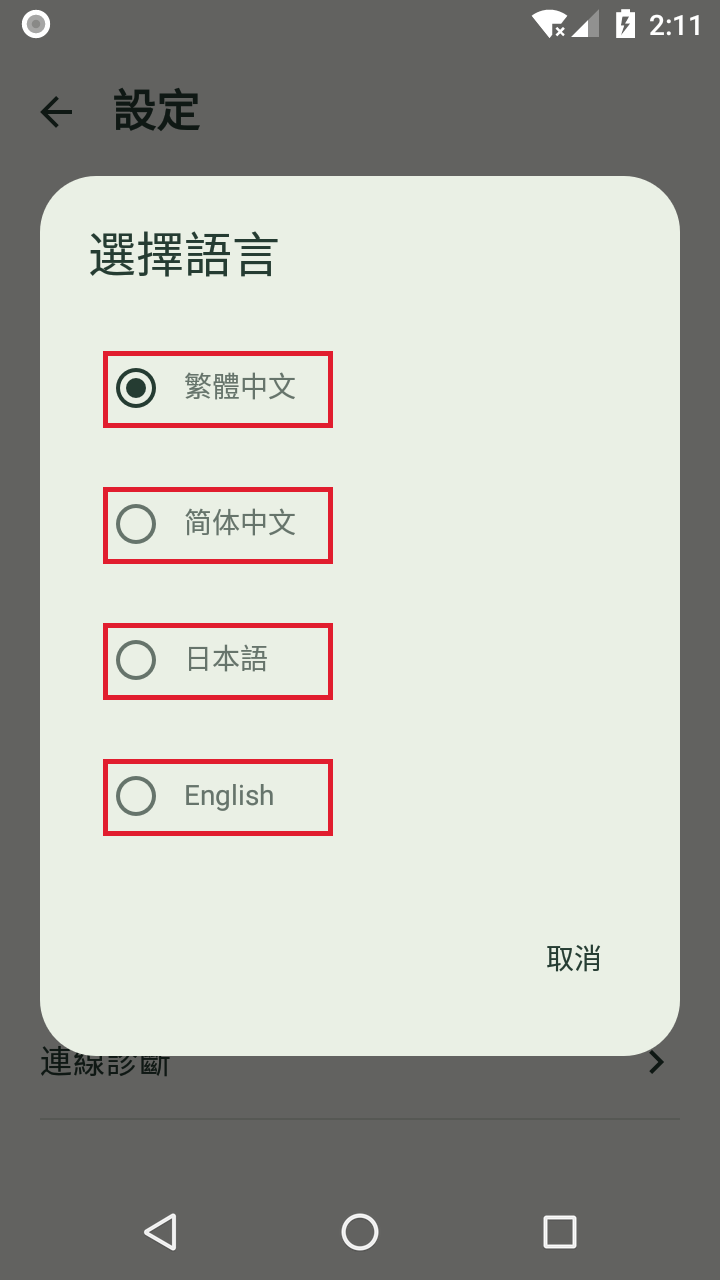
Choose 繁體中文 (Traditional Chinese), 简体中文 (Simplified Chinese), 日本語 (Japanese) or English. Settings also includes current IP and region and a simple speed test, which are available even before you connect to the VPN.
Simple speed test
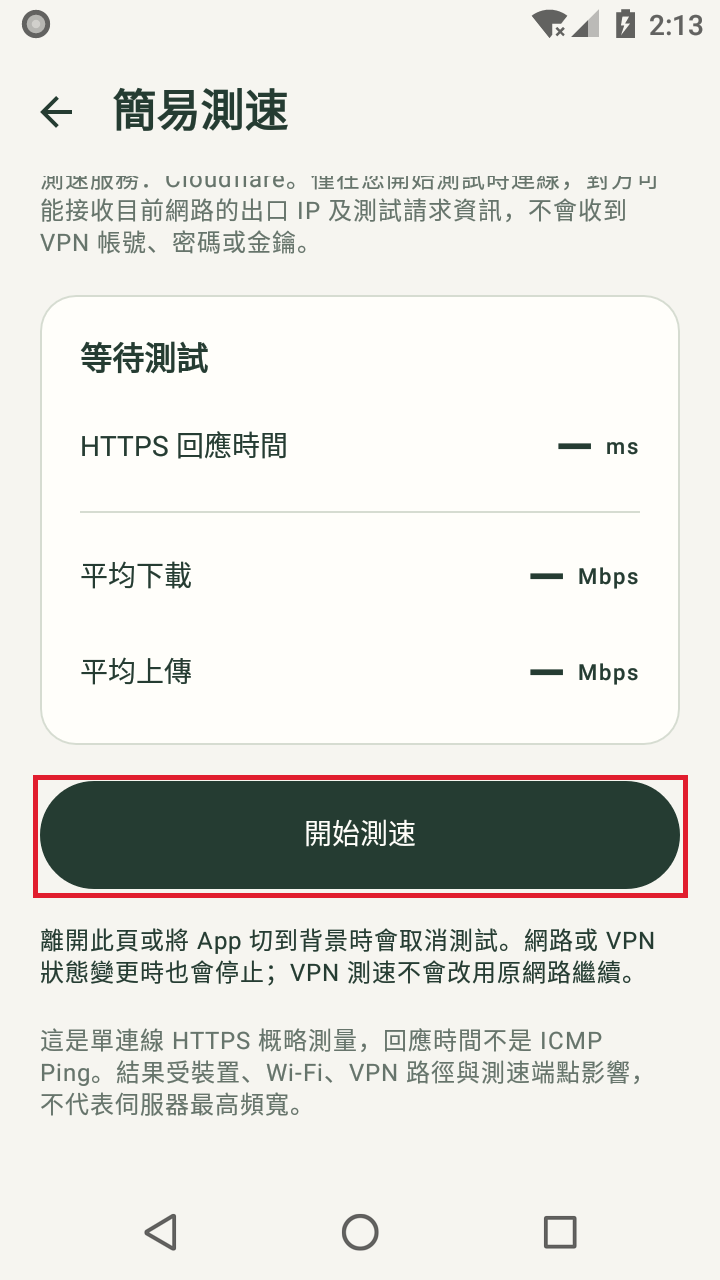
To check your current network speed, open 設定 → 簡易測速 (Settings → Simple speed test), then swipe up to find 開始測速 (Start test). Before connecting, you can test your regular network; after connecting, the test measures your current VPN connection.
The speed test uses network data: up to 40 MB of test payload per run, with 20 MB each for download and upload. Protocol overhead and retransmissions are additional, so total data use may be higher. Results show HTTPS response time and average download and upload speeds.
Stay on this screen and keep the network stable during the test. Leaving the page, switching apps, changing networks or switching the VPN stops the test; you can start again later. Speeds vary with your phone, Wi-Fi, VPN route and speed test service.
Connection diagnostics and support
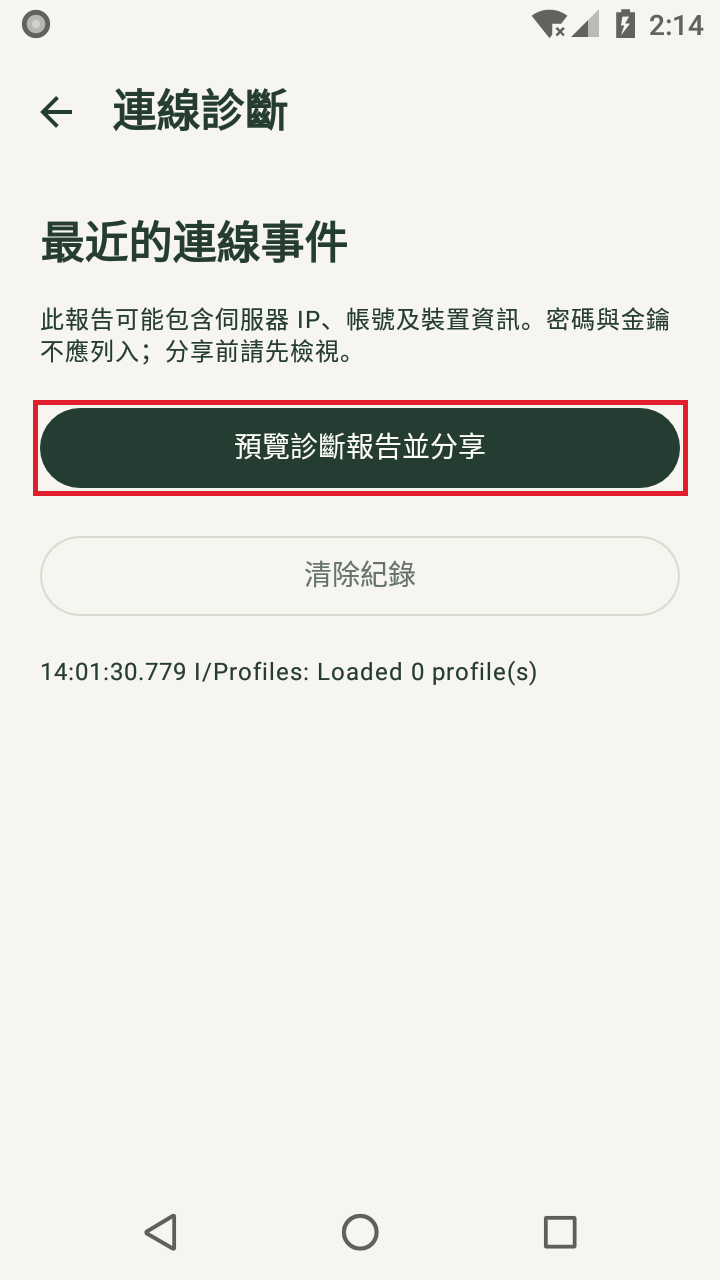
If you cannot connect, first check that your regular network works, then verify the server address, username, password and Key. For help, open 設定 → 連線診斷 → 預覽診斷報告並分享 (Settings → Connection diagnostics → Preview diagnostic report and share). Review the report, tap 分享 (Share) and choose how to send it to customer support so you can investigate together.