Other devices and additional information
Other device setup:
VPN for Windows
Step 1: Download and install OpenVPN Connect
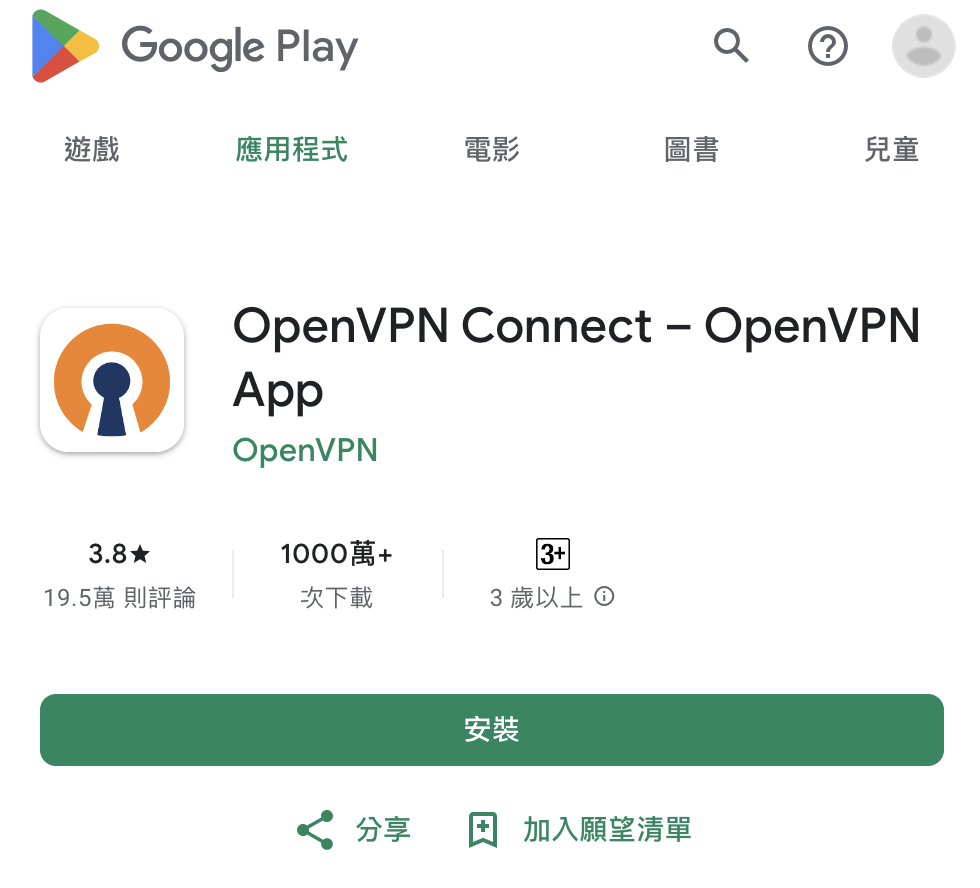
Open Google Play, search for “OpenVPN Connect”, and download it. Tap “Install” to install the app, then tap “Done” or “Open” when installation is complete.
For an older Android phone, use the link below to download a version compatible with your Android version:
Link: https://openvpn-connect.cn.uptodown.com/android/versions
Step 2: Open the app and accept the terms
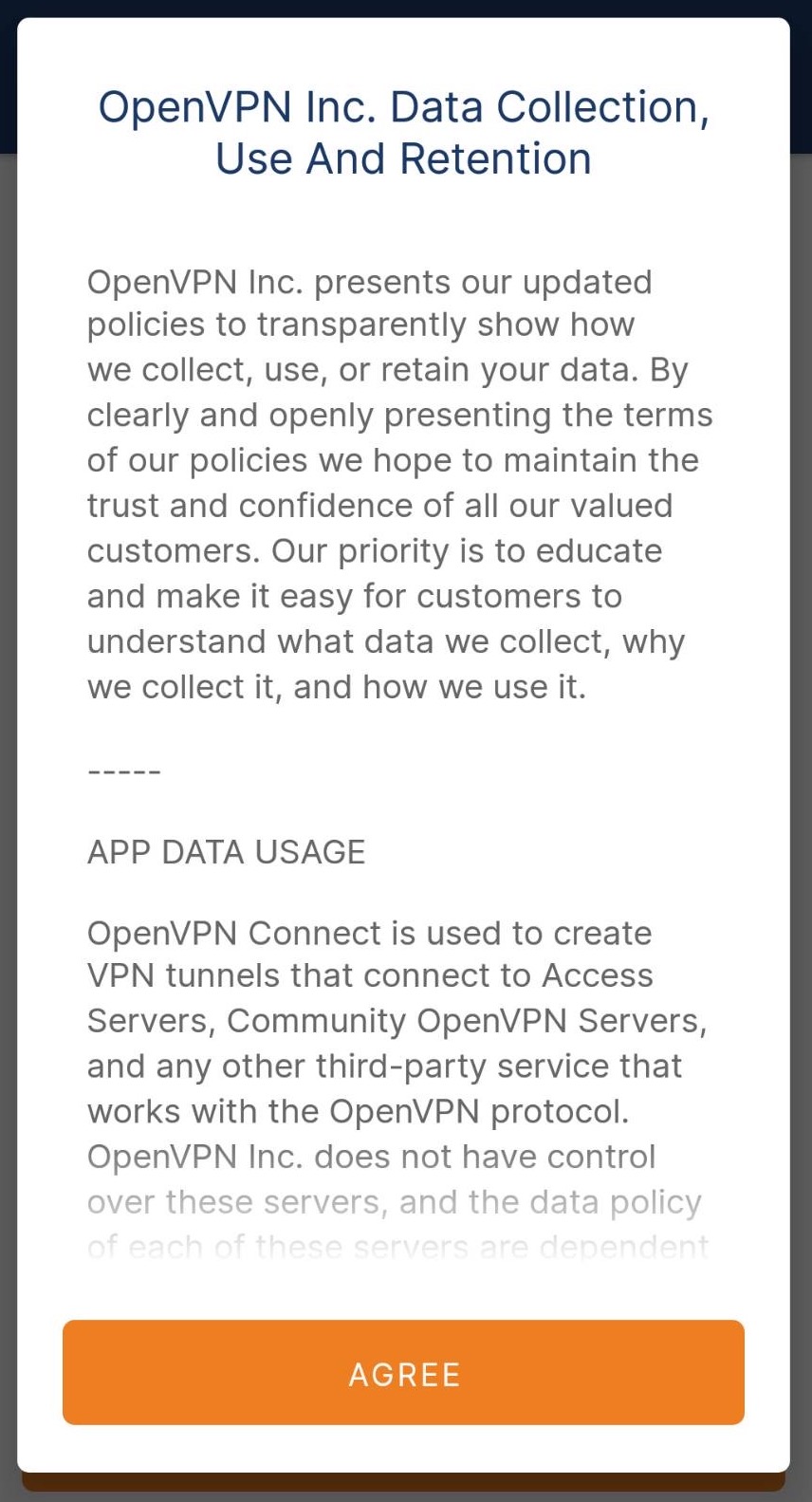
Open OpenVPN Connect, read and accept the privacy policy and terms of use, then tap “AGREE”.
Step 3: Import the .ovpn configuration file
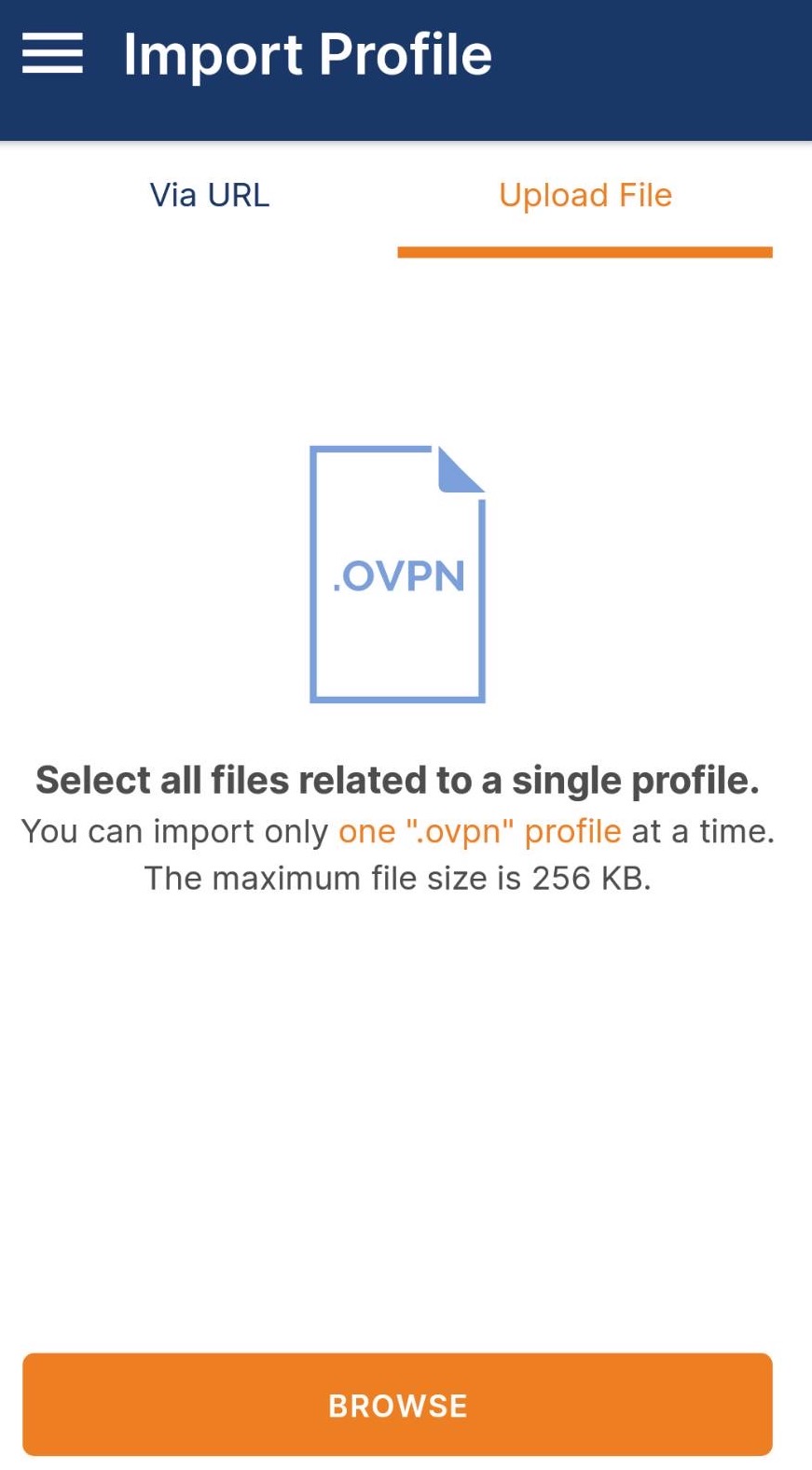
Step 3.1: Select Upload File and browse files
On the home screen, select “Import Profile”, then “Upload File”. Tap “Browse” to find the file.
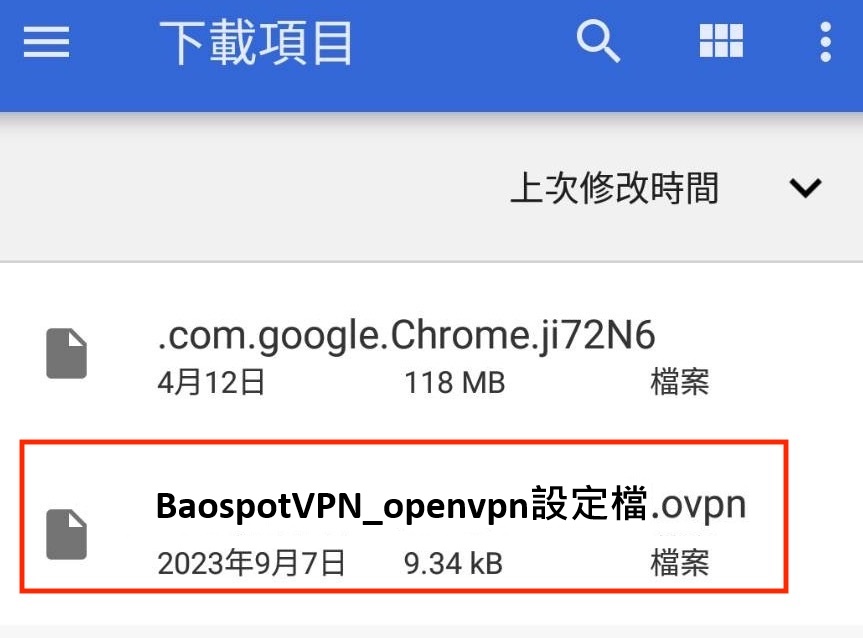
Step 3.2: Select the .ovpn file provided by support
Find and select the corresponding .ovpn configuration file in your downloaded files
( BaospotVPN _openvpn configuration.ovpn)
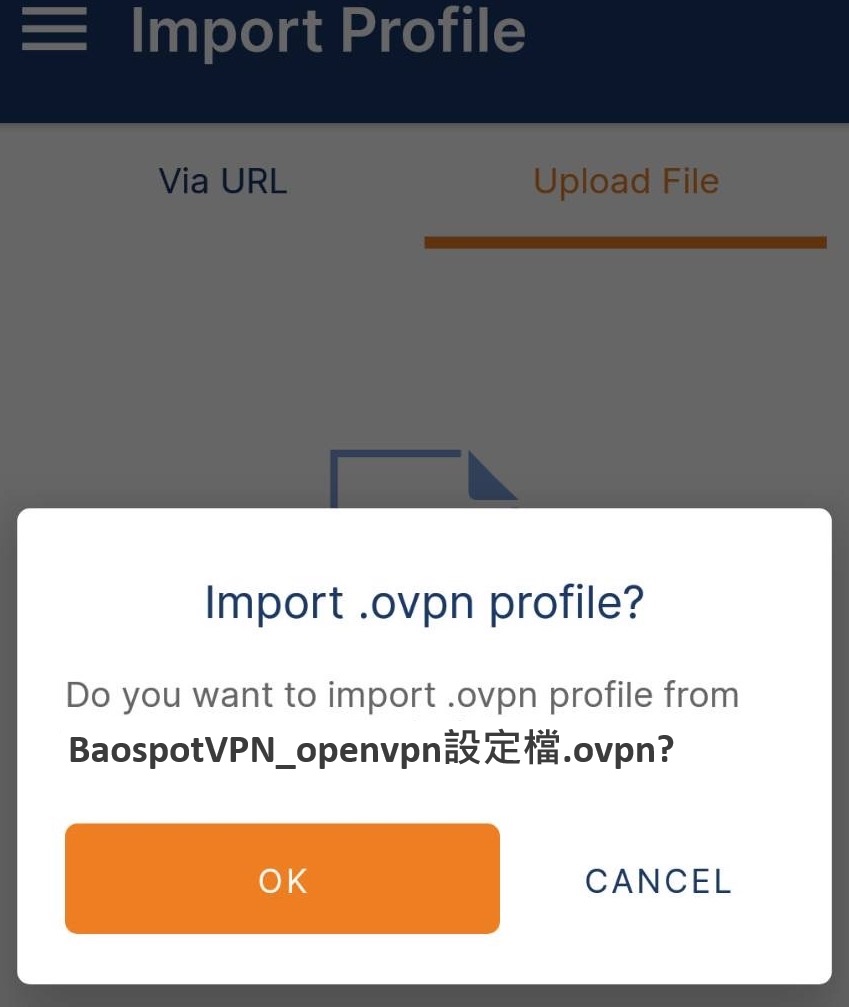
Step 3.3: Confirm the import and tap OK
Confirm the .ovpn import by tapping “OK”.
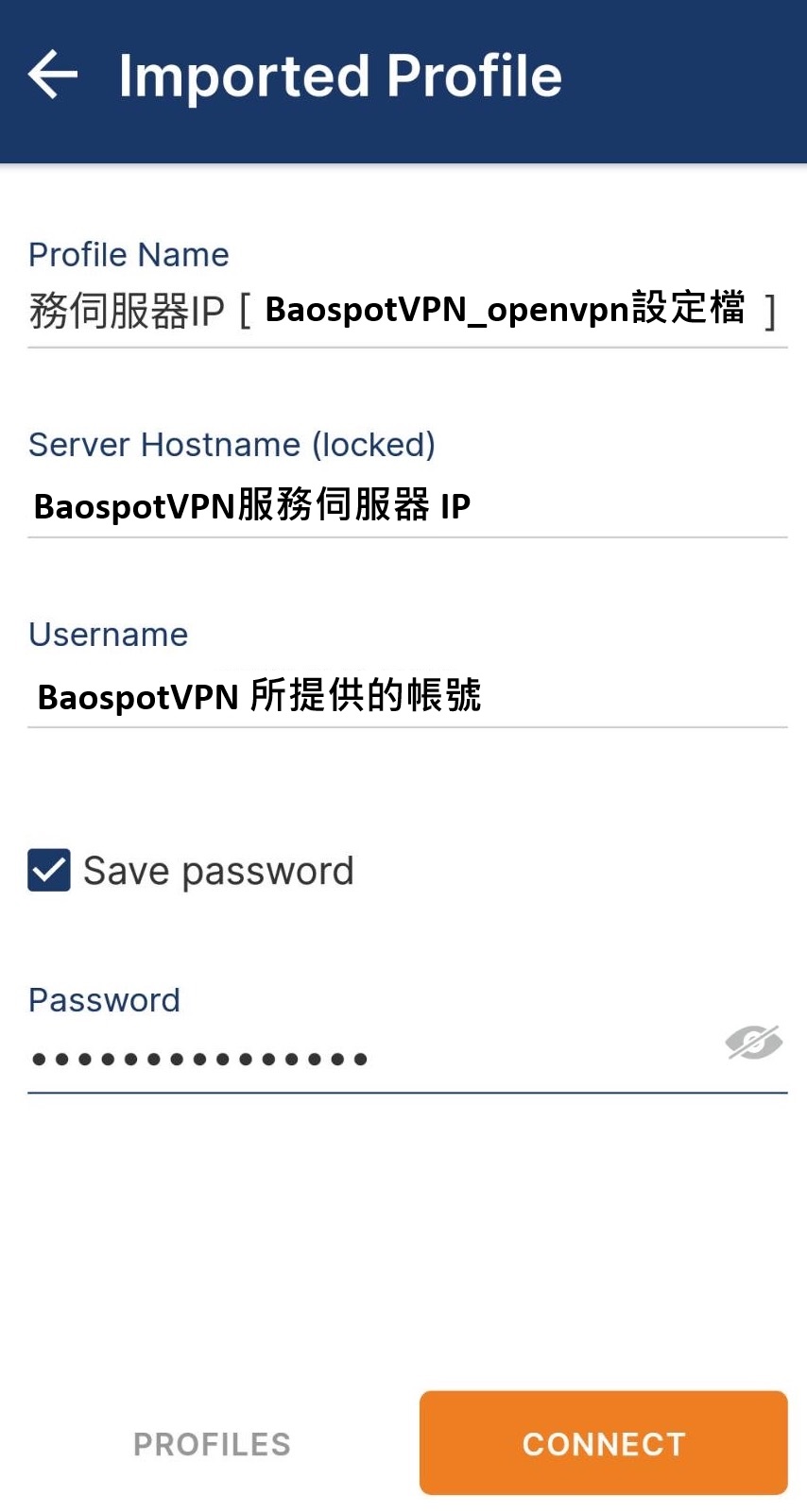
Step 4: Enter your VPN account details
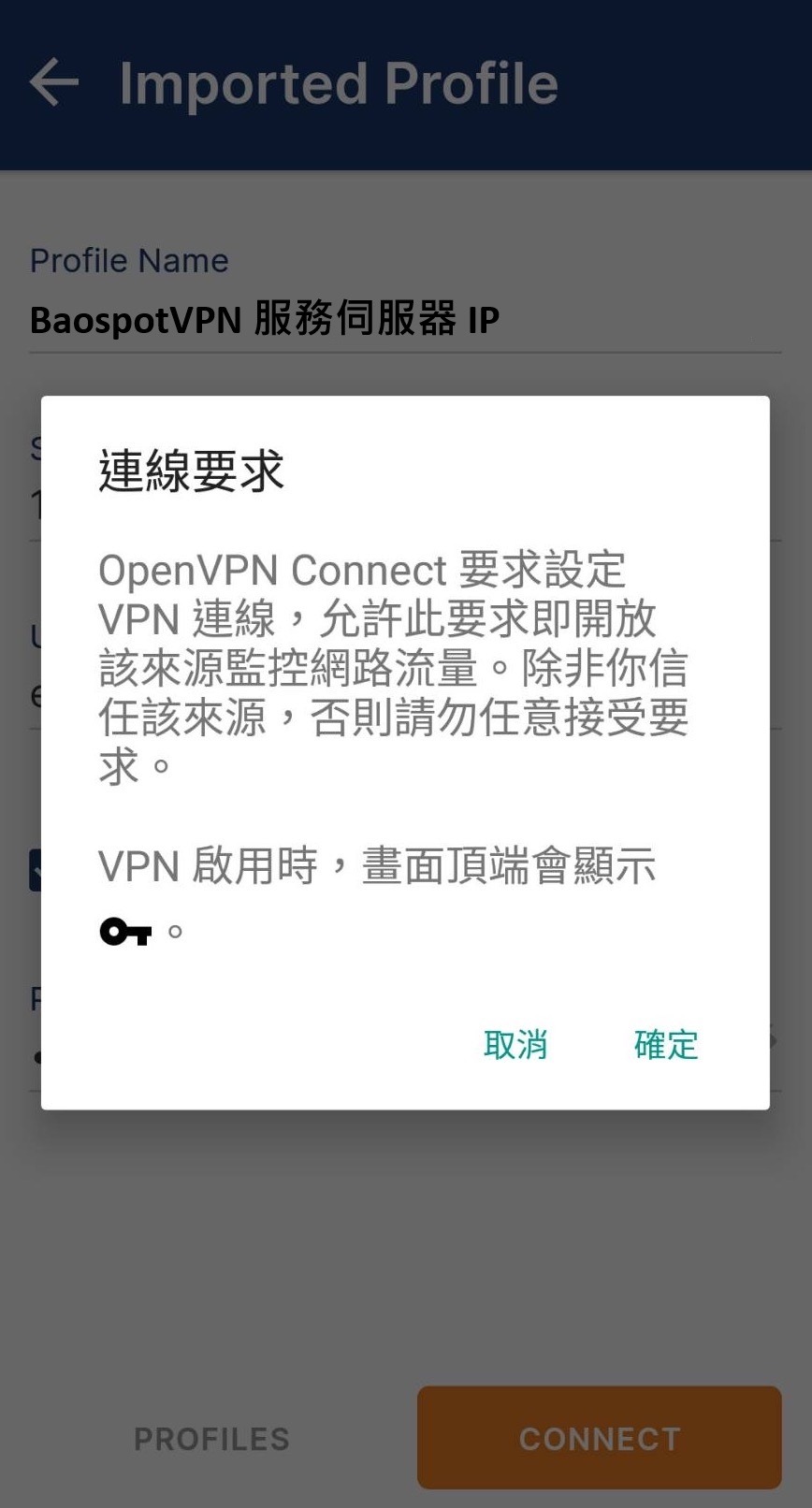
On the profile page, enter the user name and password supplied for the VPN server. Check “Save password”, then tap “CONNECT”.
Step 5: Configure the VPN connection
When the system asks to configure a VPN connection, tap “OK” to allow the app to monitor network traffic.
Step 6: Connect to the VPN
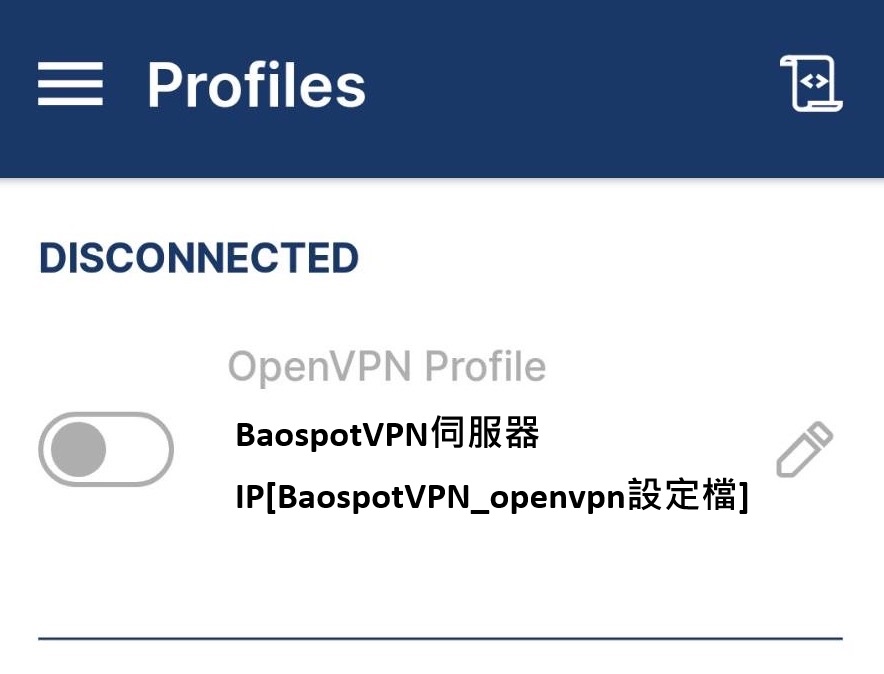
On the profile page, turn on the connection switch. Once connected, the status changes to Connected.
Step 7: Verify your VPN connection and location
After connecting, the VPN settings page will show BaospotVPN as connected.
Open your browser and visit the following websites to check whether your IP address and location match the information supplied with your VPN:
Check that the displayed IP address and location match your VPN information to confirm a successful connection.
Following these steps should allow you to set up and connect to the BaospotVPN service. If you encounter any issues, return to Settings to review and re-enter the correct VPN details, or contact technical support.