Other devices and additional information
Other device setup:
VPN for Windows
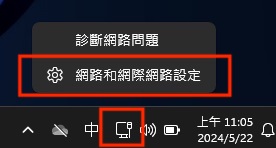
Step 1: Open Network & Internet settings
Click the network icon at the bottom right of the desktop and select “Network & Internet settings”.
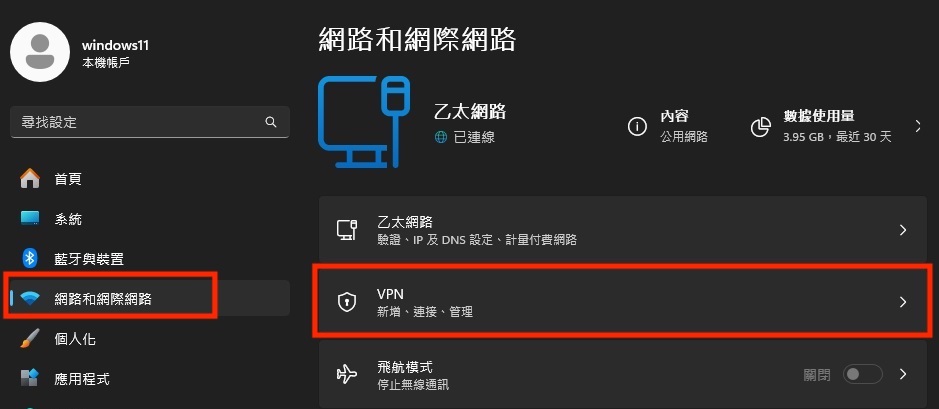
Step 2: Open VPN settings
In Settings, select “Network & Internet” on the left, then “VPN” on the right.
Step 3: Add a VPN connection
On the VPN settings page, click “Add VPN”.
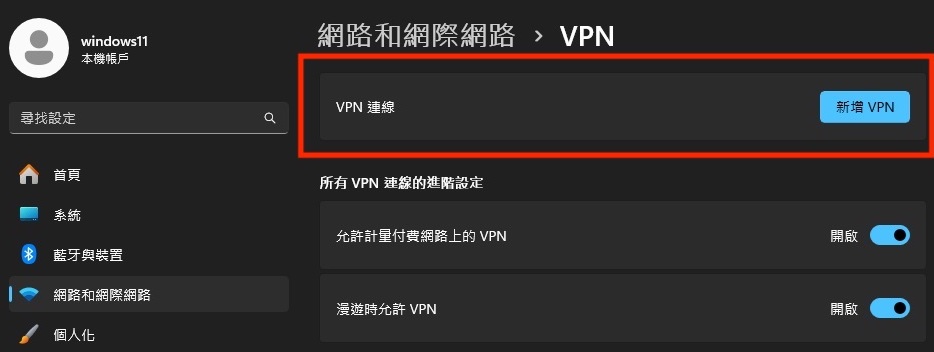
Step 4: Enter your VPN details
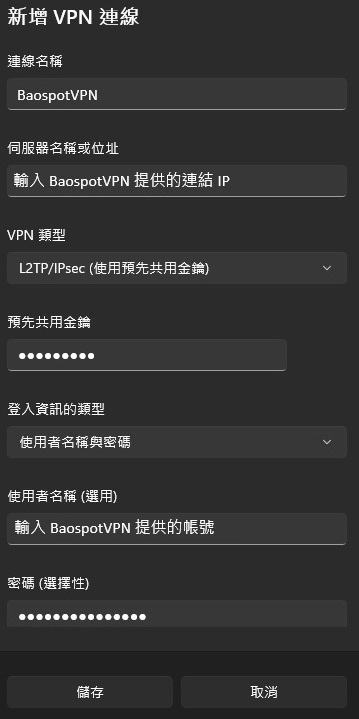
On the Settings page, enter the following information:
Connection name: Enter BaospotVPN .
Server name or address: Enter BaospotVPN connection IP address.
VPN type: Select “L2TP/IPsec with pre-shared key”.
Pre-shared key: Enter BaospotVPN key.
Type of sign-in info: Select “User name and password”.
User name: Enter BaospotVPN user name.
Password: Enter BaospotVPN password.
Click “Save”.
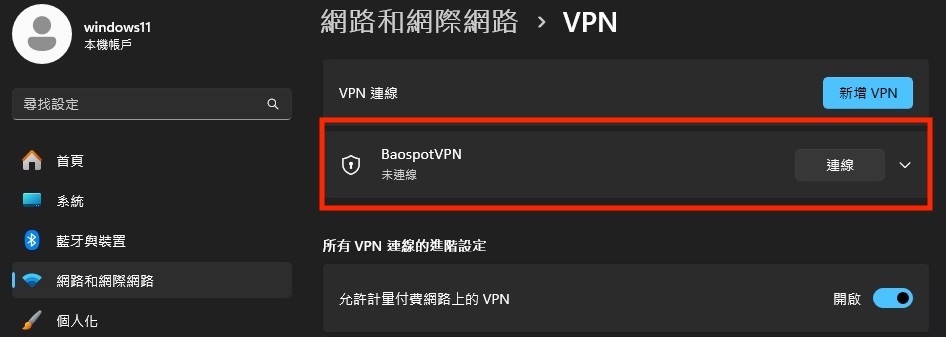
Step 5: Connect to the VPN
On the VPN settings page, select Baospot VPN , then click “Connect”.
Step 6: Connect through Quick Settings
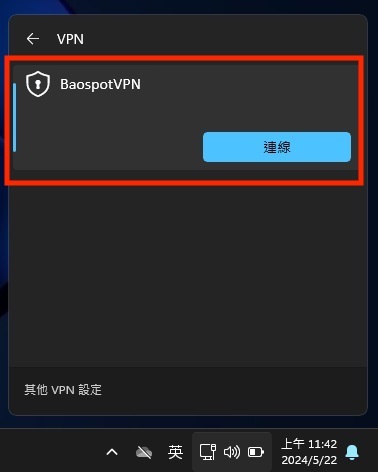
Click the network icon at the bottom right of the desktop to open Quick Settings, then select “VPN”.
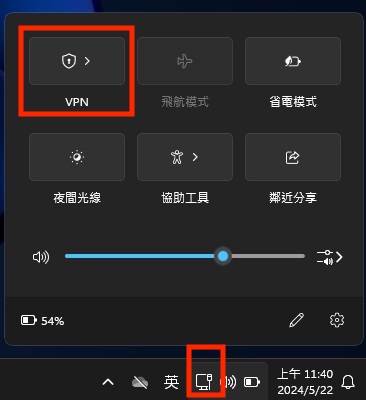
Step 7: Select BaospotVPN and connect
In VPN Quick Settings, select Baospot VPN , then click “Connect”.
Step 8: Verify your VPN connection and location
After connecting, the VPN settings page will show BaospotVPN as connected.
Open your browser and visit the following websites to check whether your IP address and location match the information supplied with your VPN:
Check that the displayed IP address and location match your VPN information to confirm a successful connection.
Following these steps should allow you to set up and connect to the BaospotVPN service. If you encounter any issues, return to Settings to review and re-enter the correct VPN details, or contact technical support.