Other devices and additional information
Other device setup:
VPN for Windows
VPN for newer Android versions (OpenVPN)
If you cannot connect, follow the settings below to adjust your system.
Step 1: Check service status
Step 1.1: Open the Services window
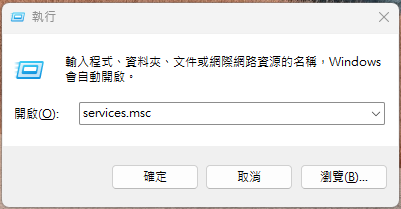
Open the Run dialog:
Press the Windows logo key + R.
Enter services.msc , then click “OK”.
Step 1.2: Check IPsec Policy Agent
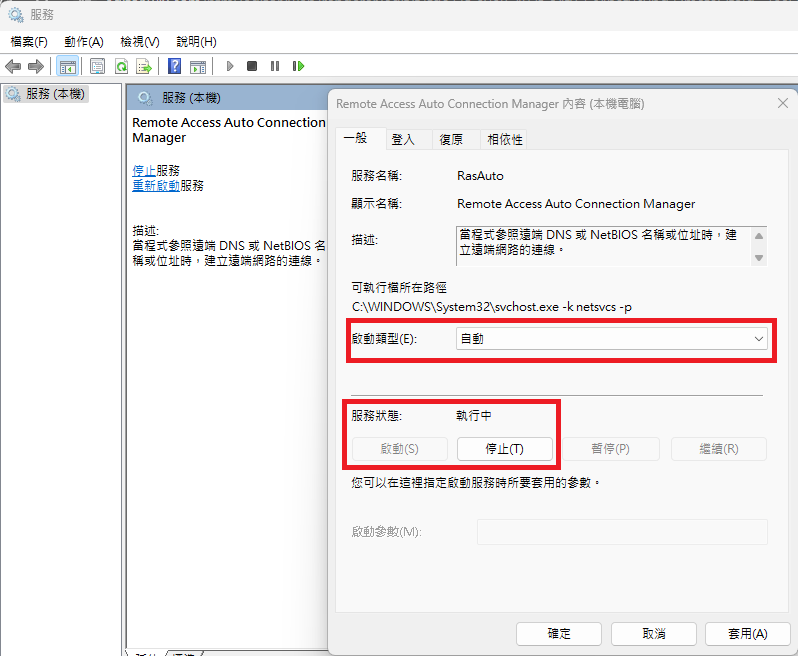
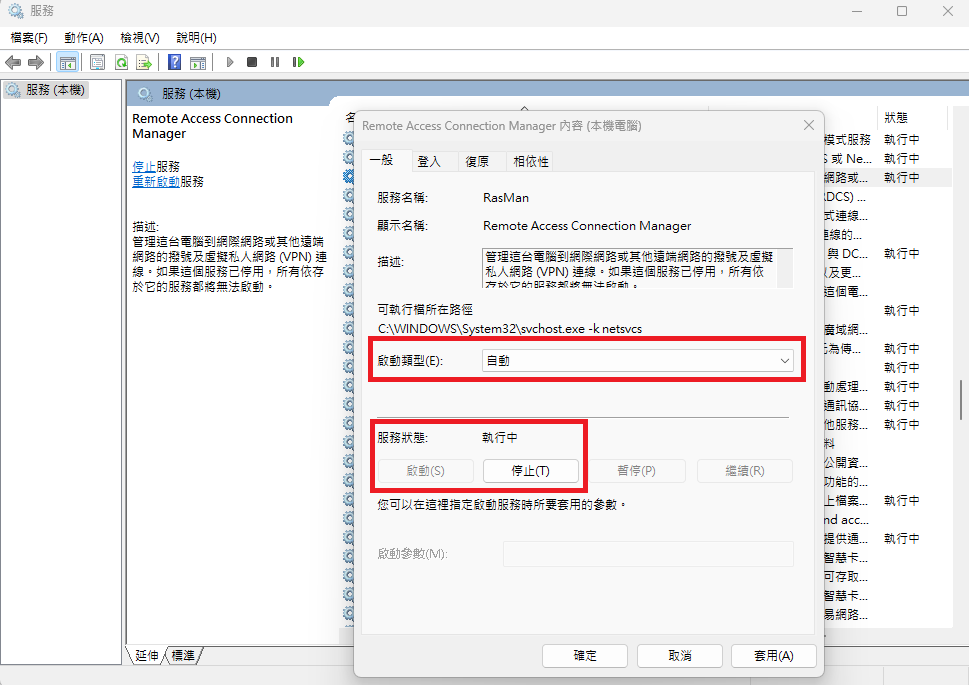
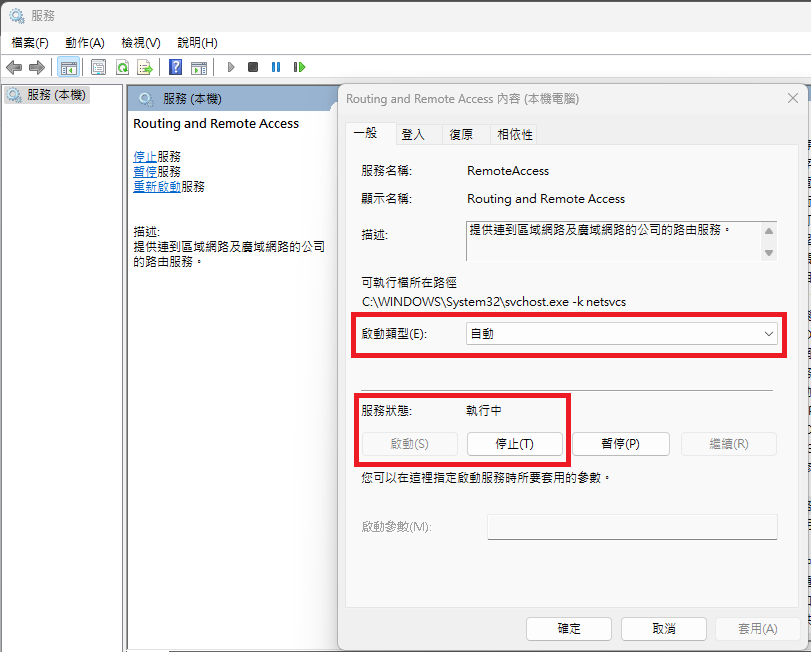
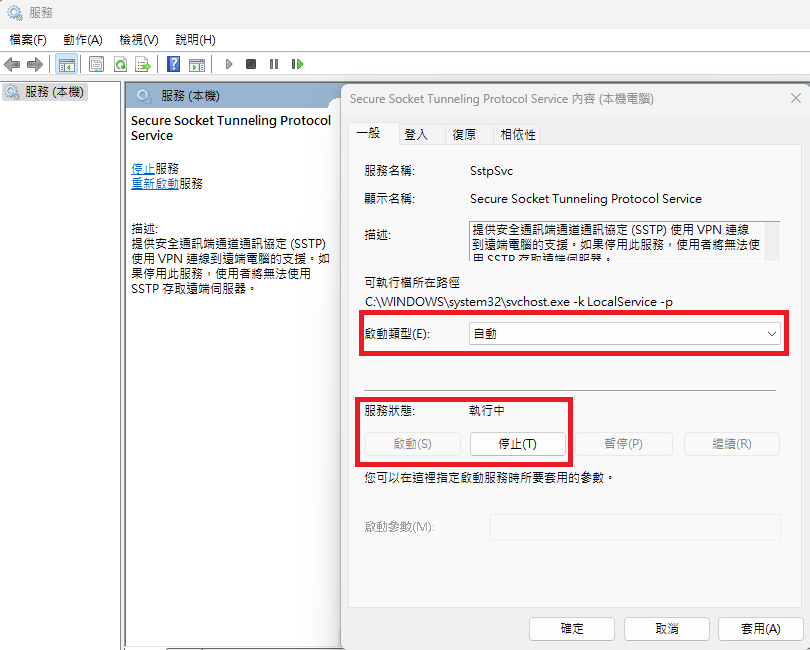
Make sure the following services have Startup type set to “Automatic” and are running:
IPsec Policy Agent
Remote Access Auto Connection Manager
Remote Access Connection Manager
Routing and Remote Access
Secure Socket Tunneling Protocol Service
The settings are shown below
IPsec Policy Agent

Step 1.3: Check Remote Access Auto Connection Manager
Remote Access Auto Connection Manager
Step 1.4: Check Remote Access Connection Manager
Remote Access Connection Manager
Step 1.5: Check Routing and Remote Access
Routing and Remote Access
Step 1.6: Check Secure Socket Tunneling Protocol Service
Secure Socket Tunneling Protocol Service
Step 2: Edit the registry
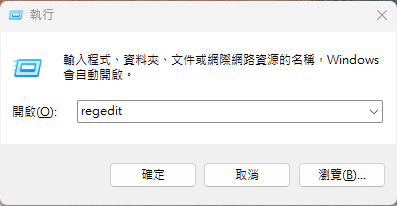
Step 2.1: Open Registry Editor
Open the Run dialog:
Press the Windows logo key + R.
Enter regedit , then click “OK”.
Step 2.2: Check the specified path and parameters
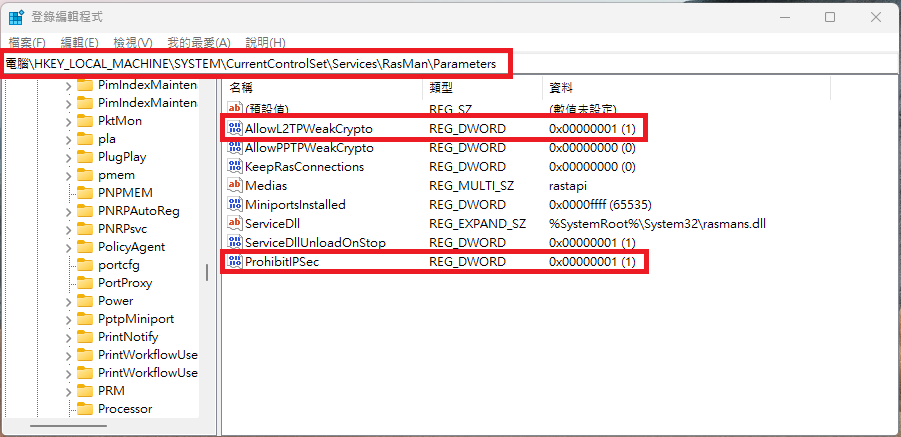
Navigate to HKEY_LOCAL_MACHINE\System\CurrentControlSet\Services\Rasman\Parameters
Add the following parameter:
ProhibitIPSec : Add a “DWORD (32-bit) Value” and set it to 1.
Modify the following parameter:
AllowL2TPWeakCrypto : Set the value to 1.
As illustrated:
Step 3: Restart the computer
After completing these settings, restart the computer to connect normally.
If you have questions, please contact our support team.